How to add a licence – brand new customers and existing subscriptions
Guides|by James Roberts|20 January 2023
Once the customer has accepted your relationship link, you will then need to add them to GMCirrus by following this guide:
To import a customer’s tenant to GMCirrus, You need to add the licenses that you will be adding for the customer to your basket and go to check out, at the select customer step you need to select new customer:
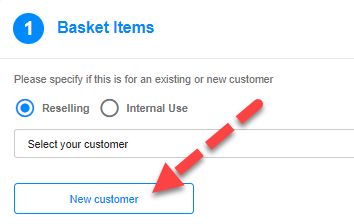
Then fill in the customer’s details on this page:
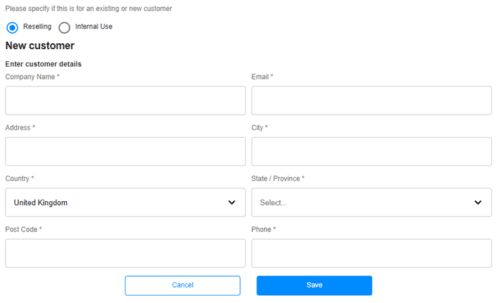
Please note the email and phone number will not be contacted at any stage of this.
After clicking save, it will take you back to the select customer screen and will automatically select the customer account you just created, or you can find the customer in the select customer drop down box.
Continue through the check-out, when it asks you for their tenant fill in their tenant domain (.onmicrosoft.com) in the text box and then click the checkbox “My customer is already using Office 365 and he/she owns this domain” and click the verify authorization button.
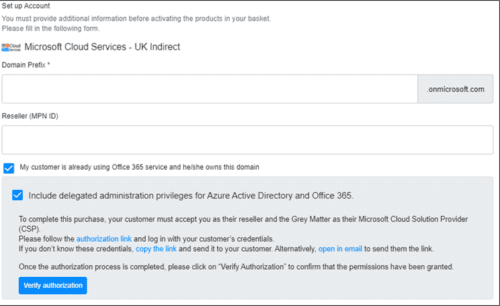
Then in the drop-down box fill in the customer’s default domain and click continue, this will connect their tenant to the account you have just created
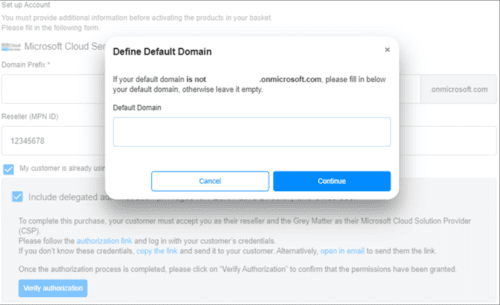
This will then take you back to the beginning of the check out process and you can quickly proceed through the checkout again checking that the commitment and billing frequency is still correct for the subscription.
Now for all future additions of brand new subscriptions you will be able to simply select the customer from the dropdown and checkout with their licenses. if you need to increase licenses for an existing subscription you can follow the guide below:
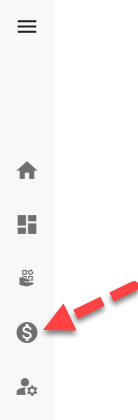
Click on billing ($) on the toolbar to the left of the screen:
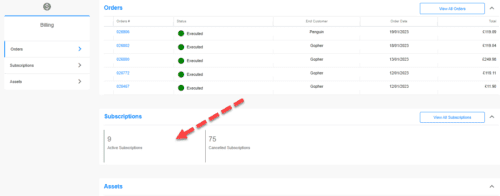
Then click view all subscriptions on the right:
Then you just need to find the subscription and click the ellipses to the right of the subscription, which will give the option to Buy Licenses:
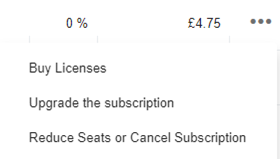
Then you will need to proceed with the check-out and the license will be added to your subscription ready for you to assign in the M365 admin portal
If you have any questions, you can reach our GMCirrus team for help by using the live chat in the bottom right corner of GMCirrus.