
How to create an Azure Maps account
Blog|by Jamie Carruthers|3 June 2026

If you’re getting started with Azure Maps, one of the first steps is creating an Azure Maps account and retrieving the authentication keys needed for setup and integration.
Whether you’re testing a new mapping solution, supporting a proof of concept, or enabling a wider migration, getting the foundations right early makes everything that follows far smoother.
This step‑by‑step guide shows you how to create an Azure Maps account in the Azure portal and where to retrieve authentication keys once the resource is live. It also highlights a few practical next steps around security, monitoring, and cost control – helping you move from setup to scale with confidence.
Before you begin
Before you start, make sure you have:
- access to the correct Azure subscription
- permission to create resources
- a resource group in mind, or a plan to create a new one
- a clear naming convention for your Azure Maps account
These details matter more than they might seem. A tidy setup makes your Azure environment easier to manage as more teams, services, or regions come into play.
Step one: Sign in to the Azure portal
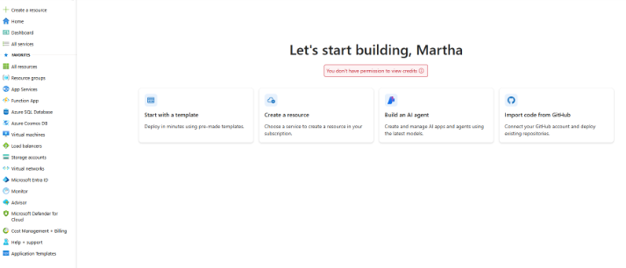
Sign in to the Microsoft Azure portal and open the home page. This is where you’ll start creating and configuring your Azure Maps account.
Step two: Select Create a resource
From the left-hand menu, select Create a resource.
Depending on your portal layout, you may also reach this via the Azure Marketplace – the process is the same.
Step three: Search for Azure Maps
In the marketplace search bar, search for Azure Maps.
Select the service when it appears to open the product page.
Step four: Select Create
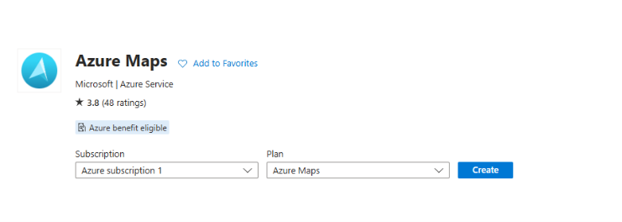
On the Azure Maps product page, select Create.
This opens the configuration screen where you’ll define the account details.
Step five: Enter the required account details
Complete the required fields, which typically include:
- your Azure subscription
- the resource group
- the Azure Maps account name
- any pricing or configuration options shown
Use a name that’s clear and consistent with the rest of your Azure estate – it will make the resource easier to identify and manage later.

Step six: Create a new resource group (if needed)
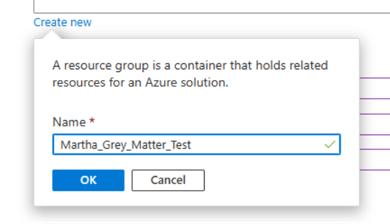
If you don’t already have a suitable resource group, select Create new.
Creating the right structure from the outset makes governance, reporting, and cost management much easier over time.

Step seven: Name the resource group and confirm
Enter a suitable name for the resource group, then select OK.
Simple, practical naming pays off as your Azure environment grows.
Step eight: Review and create the resource
Review the configuration carefully, accept the terms if prompted, then select Review + create.
Azure will validate your settings. Once validation completes, select Create.
Step nine: Open the Azure Maps resource
When deployment finishes, select Go to resource to open your new Azure Maps account.
If Azure Maps will support a live service or form part of a wider application environment, this is a good point to think beyond setup alone. Our Azure Monitoring Service helps you maintain visibility across performance, security, compliance, and billing – so potential issues are identified early and managed properly.

Step ten: Open authentication details
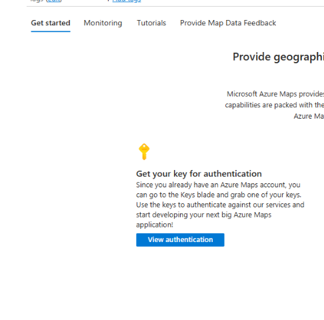
Within the Azure Maps account, select Authentication or View authentication details, depending on your portal view.
This is where you retrieve the credentials required to connect applications securely to Azure Maps services.
Step eleven: Review the primary and secondary keys
You’ll see both a primary key and a secondary key.
Treat these as sensitive credentials. The primary key is typically used for shared key authentication, while the secondary key supports rotation and continuity planning. This is the point where you officially retrieve authentication keys for your Azure Maps account.
Choose the right authentication approach
While shared keys are quick to set up, they’re not always the best long‑term option.
For production or growing workloads, consider more robust approaches such as Microsoft Entra ID or shared access signatures (SAS). These provide stronger access control and better governance as usage scales.
Put cost visibility in place early
Once the account is live, it’s worth thinking about how usage and spend will be managed over time.
Azure Maps consumption can grow quickly depending on transaction volume, environments, and connected applications. Our Azure Cost Management and Optimisation Service helps you forecast usage, identify waste, and understand spend across subscriptions and resource groups.
Look at the bigger Azure picture
For some teams, Azure Maps is a standalone service. For others, it’s part of a broader migration, SaaS platform, or cloud‑native build.
If that’s the case, our Accelerate Partner Program supports software development companies with cloud expertise, technical guidance, funding support, cost control, and go‑to‑market enablement – helping you build smarter and scale faster.
Recommended Microsoft resources
- Use tags to organise your Azure resources and management hierarchy
Guidance on tagging for governance, reporting, and visibility
- Migrate from Bing Maps to Azure Maps overview
A useful starting point for migration planning
- Azure Maps samples
Code examples for common Azure Maps scenarios
- Azure Maps pricing
Current transaction‑based pricing details
- Azure pricing calculator
Estimate expected Azure Maps costs
- Understanding Azure Maps transactions
How requests are measured and billed
Final thoughts
Creating an Azure Maps account is straightforward, but the real value comes from how the service is secured, governed, and supported over time.
From the moment you retrieve authentication keys, you’re shaping how Azure Maps will be used, protected, and scaled. That’s where the support we’ve put in place really matters. Our Azure specialists – including mapping experts – are on hand to help with configuration, best practice security, troubleshooting, and ongoing optimisation as your usage grows.
The setup itself is simple. Making sure Azure Maps continues to perform reliably, securely, and cost‑effectively is where our experience really pays off.