
How to Migrate from Google Maps to HERE Maps
Blog|1 April 2020
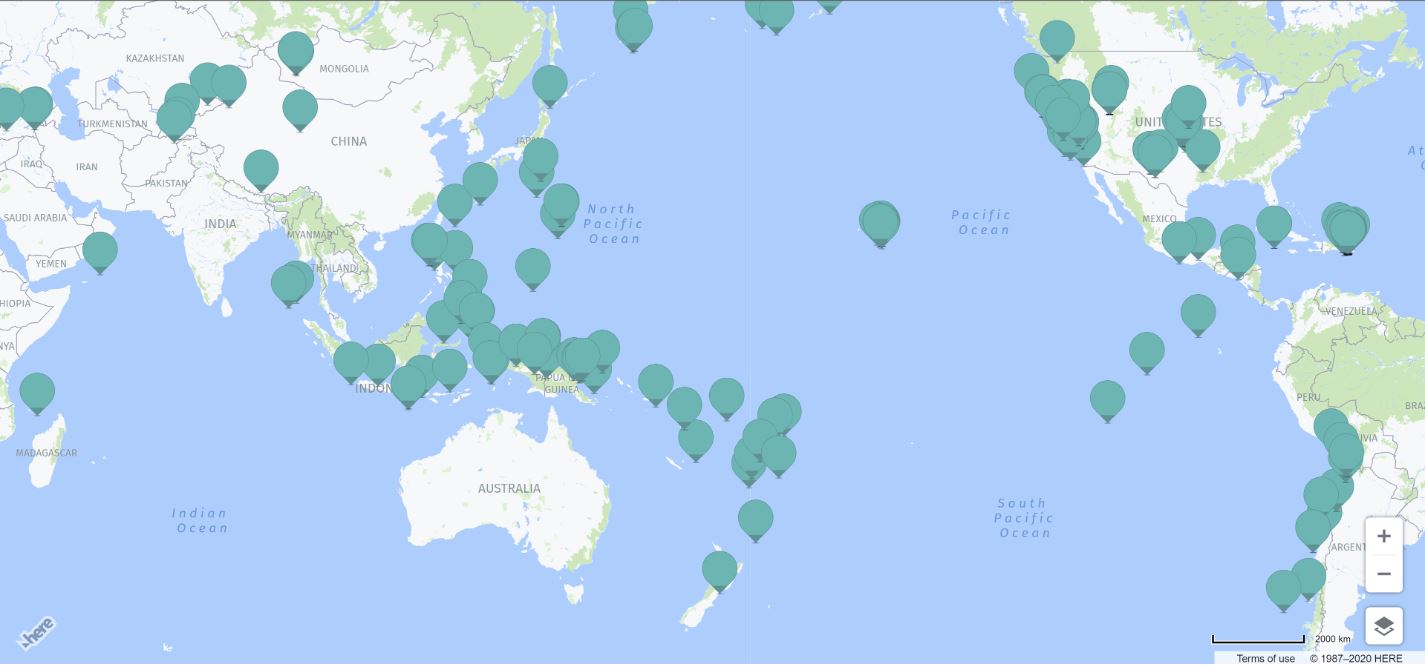
This blog post covers three simple use cases to help you migrate from Google Maps to HERE Maps:
- Start with the basic map set up
- Add a static marker to the map
- Create a set of dynamic markers to the map
To get started, you will need a Google key and also a HERE developer account.
If you don’t have a HERE account, you can register here to create one. It requires an account, a project, and then your key. There’s no credit card required and sign up is very simple.
The Google Key requires a Google account, setting up a project, enabling the Maps API, and generating a key.
The basic map
To get started, we’ll begin by creating a map using Google Maps. First, you add a script tag to your page:

There are two things to note here. First, you need to include your key in the src attribute. Google lets you restrict key usage to specific domains. Next, you define the function to execute after the maps library has loaded. In the example above this is “initMap”.
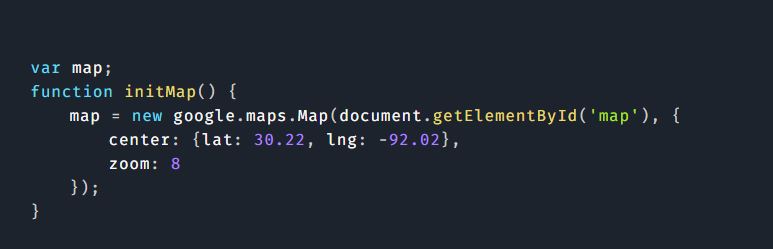
The JavaScript to load a map at our location, Lafayette, Louisiana, looks like this:
If you’re a current user of Google Maps service, you may be interested in switching mapping providers. Grey Matter offers a bespoke migration service to help you innovate, build, and scale on the platform of your choice. Contact [email protected]
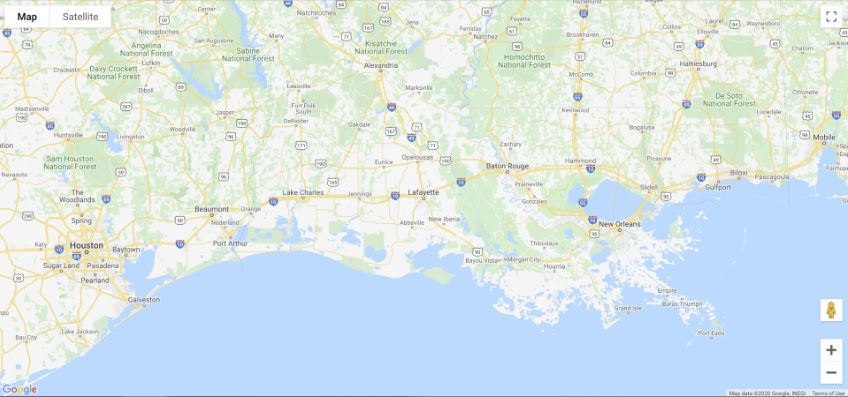
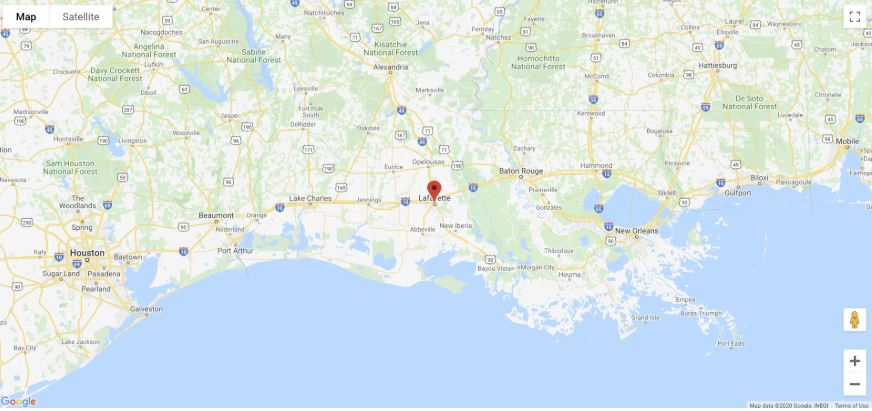
The code creates a new Maps object instance with a specific centre and zoom property. Note that it’s assuming a div on the page with the ID of map. Here’s the map result:
Now moving to the HERE version of the basic map. First, we break up our library into different parts based on what you need. Technically just one JS and CSS resource would be required, but to replicate the default UI controls and touch/mouse controls in the Google map, we’re going to load in multiple libraries:

Next we go to the JavaScript to add the map. Note that as before, we’re skipping the HTML where we define a div to hold the map.
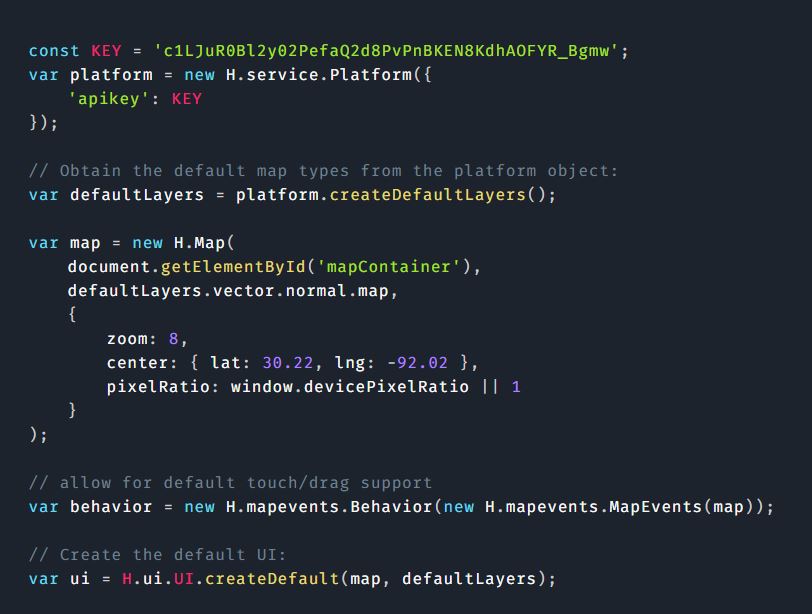
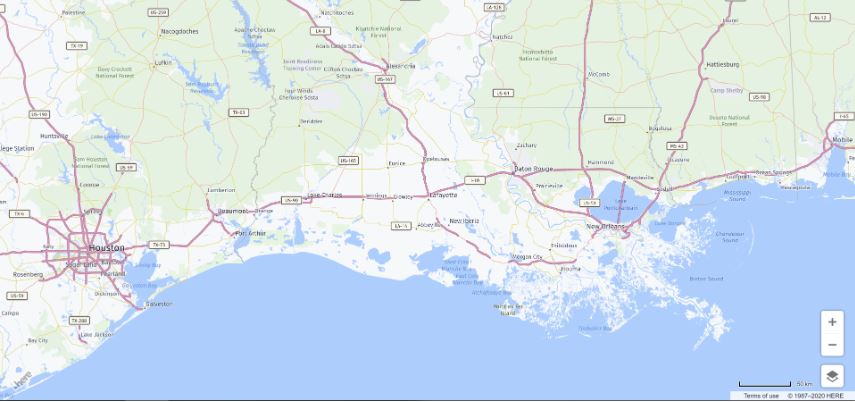
You will see there is a bit more code here, but the default with HERE Maps is to assume less and give you a bit more control over how the map is going to work. Both of the last lines are how default behaviours and UI are added, if you want them. Here is the result:
Add a marker to the map
We’ve seen how to convert a Google Map to HERE Maps, so let’s now move on to an example with a marker. For both maps, the example will be added as a hard coded marker that’s in the same place as the centre of the map. Here is the Google Maps version:

And here is the result:
Moving on to the HERE Map’s version:

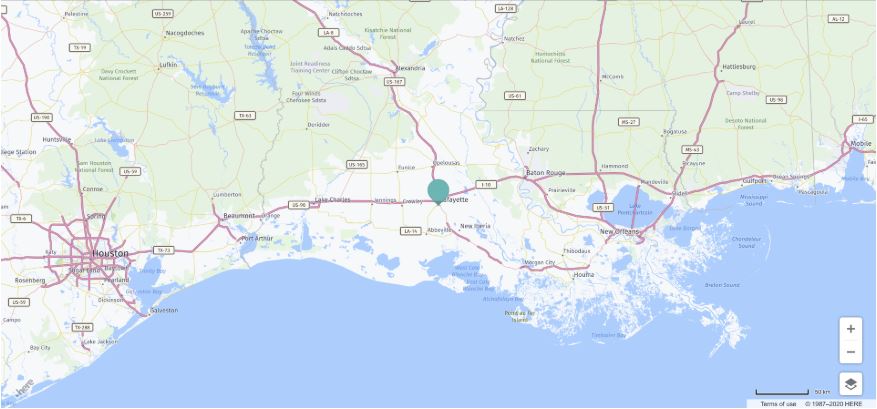
And here is how the marker looks:
Create Dynamic Markers
For the third example we will take information from a USGS feed representing earthquake data in GeoJSON data. The original Google example for this shows a version using JSON/P, but this example uses the regular JSON feed as it now supports CORS.
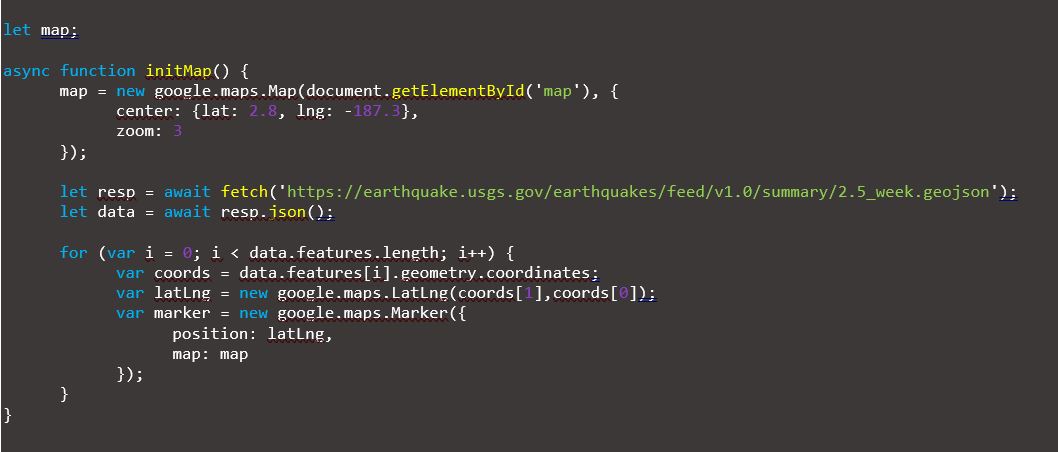
The “initMap” function has been marked as async and then the Fetch API has been used to retrieve the GeoJSON data. The data is iterated and a marker is added for each result. Here is this first example:
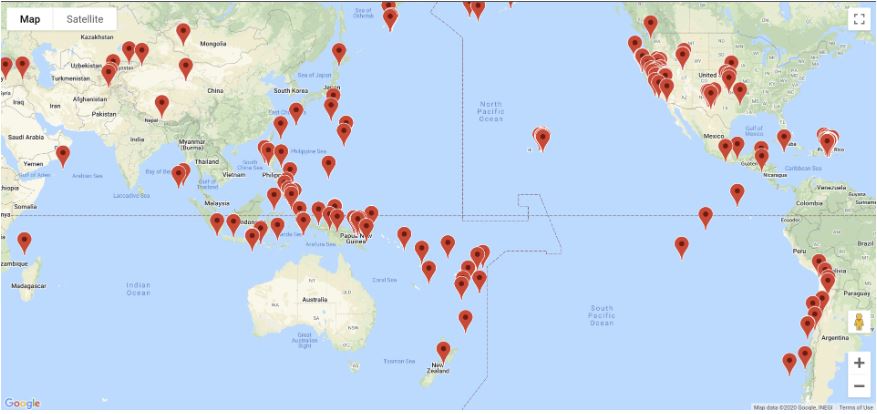
The HERE version is below:
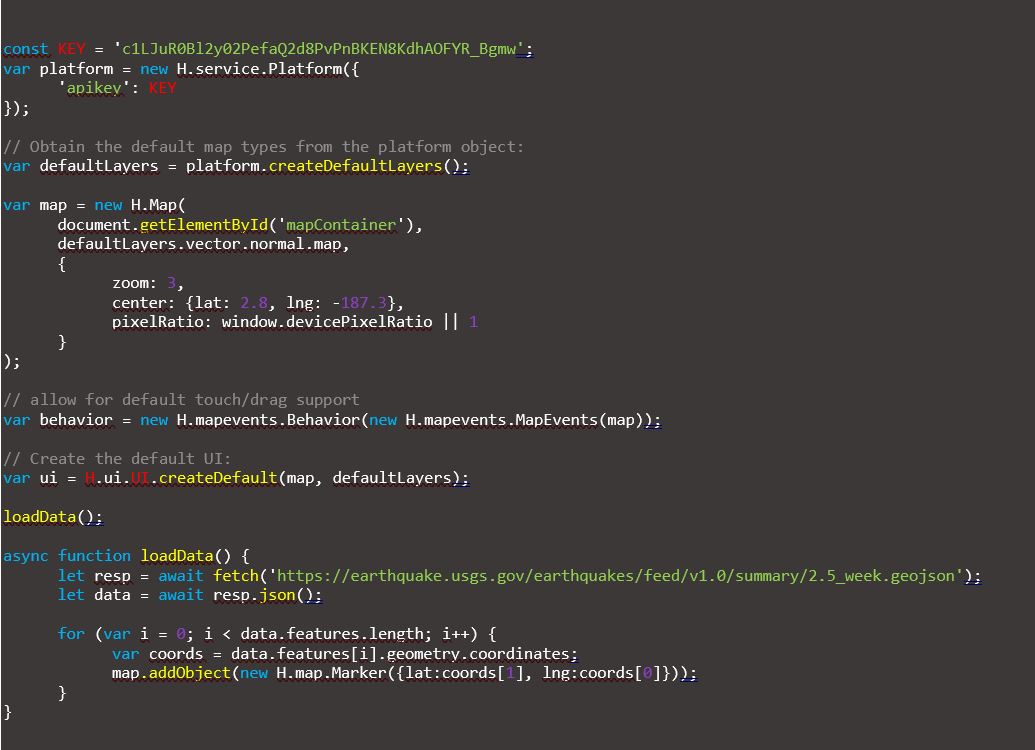
You will see that it’s virtually the same except for the call to add the marker. Here’s how it looks:

For more information on migrating different map functions from Google Maps to HERE Technologies visit the HERE resource page.
Grey Matter is the official distributor of HERE Technologies. Our HERE specialists can discuss your project and use case and provide you with licensing advice and guidance, contact them: [email protected]
If you’re a current user of Google Maps service, you may be interested in switching mapping providers. Grey Matter offers a bespoke migration service to help you innovate, build, and scale on the platform of your choice. Contact [email protected]